> For the complete documentation index, see [llms.txt](https://docs.bugbase.ai/llms.txt). Markdown versions of documentation pages are available by appending `.md` to page URLs; this page is available as [Markdown](https://docs.bugbase.ai/bounty-hunter-guide/multi-factor-authentication.md).
# Multi-Factor Authentication
Secure your account with Multi-Factor authentication
Multi-factor authentication (MFA) is a security system that requires users to provide multiple forms of authentication in order to access a system, application, or service. This adds an extra layer of security, making it more difficult for unauthorised users to gain access to sensitive information
You can set up Multi-Factor authentication in one of the two ways. Firstly, using any **Authenticator** app capable of generating **Time-based One-Time Password (TOTP)** authentication codes. You can use Google Authenticator or Duo Mobile or any other compatible application to generate the codes. Secondly, You can enable OTP based login via Registered Email Address. Everytime you try to login a OTP will be sent to your registered email and you have to verify it.
### Setup
> To enable Multi-Factor Authentication:
1. Navigate to Your **Hacker Dashboard > Settings > Security.**
2. Choose any one of the Authentication type and Enable it.
### MFA via Authenticator App
1. Toggle **Enable multi factor authentication via authenticator app**.
2. A modal would pop up on your screen, click on the **Setup** button to initiate MFA process.
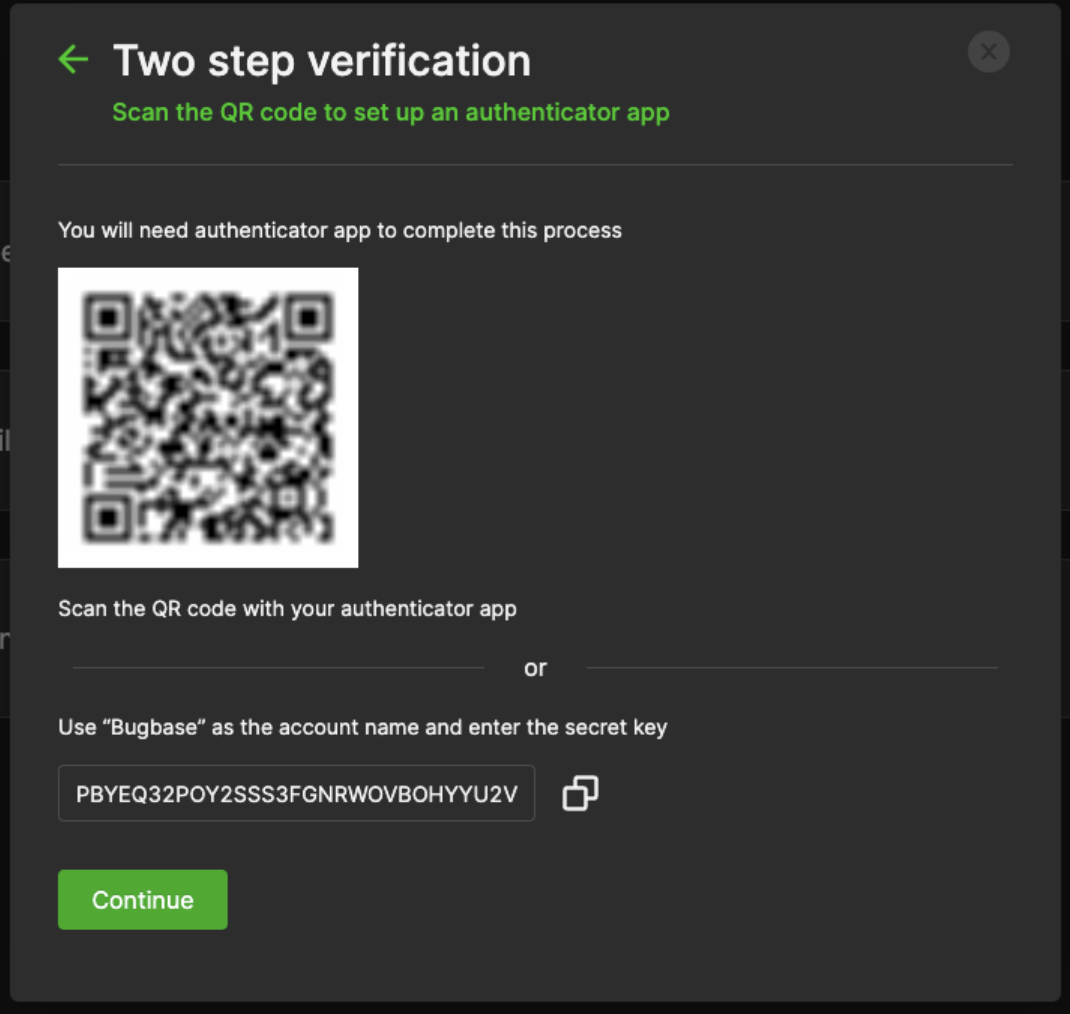
3. You will see a `QR code` and also a `Secret key` on the screen.
4. You can either scan the `QR code` or enter the `Secret Key` and manually save it on your Authenticator app. Now you would be able to see the`BugBase (username)` account in your app.
5. Click **`Continue`** once you have added your account in the Authenticator app.
6. Enter the 6-digit code from the Authenticator app and click on `Verify`.
7. After successful verification, you will be logged out from your account and you will be asked to enter the 6-digit OTP every time you are logging in.
### MFA via Email OTP
1. Toggle **Enable multi factor authentication via email**.
2. A modal would pop up on your screen, click on the **Setup** button to initiate MFA process.
3. A One-Time Password will be sent to your registered email and Enter the OTP to complete the verification process.
> You can disable multi-factor authentication as well from **`Settings`** > **`Security`**.