> For the complete documentation index, see [llms.txt](https://docs.bugbase.ai/llms.txt). Markdown versions of documentation pages are available by appending `.md` to page URLs; this page is available as [Markdown](https://docs.bugbase.ai/bounty-hunter-guide/settings/verify-kyc.md).
# Verify KYC
Hackers on our platform can now instantly verify their KYC. For seamless payments and instant transactions on bounties, companies require a certain level of KYC of the hacker to be verified.
**KYC** on **BugBase** is a simple process that requires you to fill in your Personal Details and Payment Details. Once you have filled in the details, you will be required to validate your details by verifying a valid Government issued ID. Once your details are validated, you will be able to complete verification.
> Indian citizens can verify their KYC using their Aadhar and Pan Card, while International users can use their passport for instant KYC verification.
{% hint style="info" %}
**Aadhaar**, **PAN** and **Passport** verification can only be attempted once due to API Rate Limiting reasons.
Incase there is a failure while verifying KYC please mail us at [admin@bugbase.in](https://docs.bugbase.ai/)
{% endhint %}
BugBase does not store any of your sensitive information. All information is verified through secure third party services.
#### Steps to verify your KYC:
1. Click on the **Complete your KYC** button adjacent to your profile icon. Or Navigate to **Settings** -> **Payment Details & KYC**
2. You will be greeted with a form with multiple stages.
3. Enter your correct personal details. Click on **Save & Continue**
4. Enter your correct payment details. Click on **Save & Continue**
5. **Important: ID Verification**\
For Indian citizens:
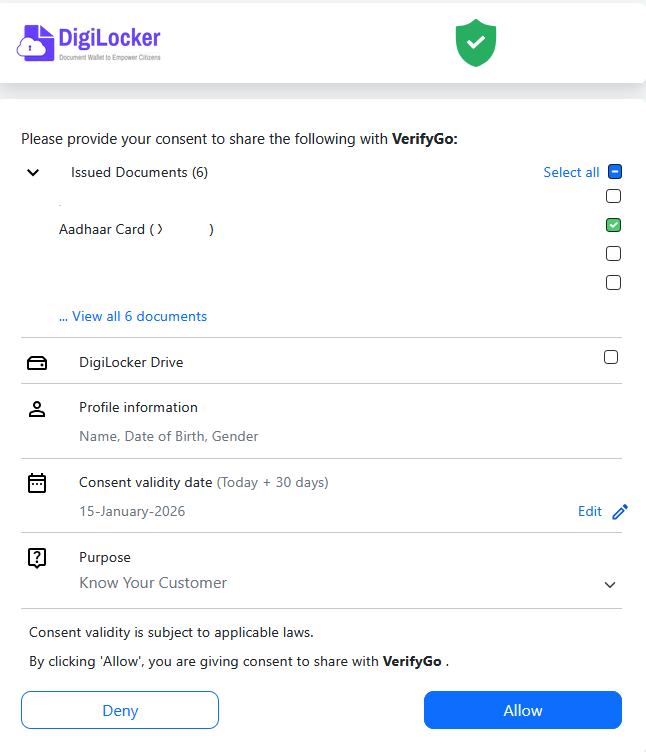
* **Aadhar Verification:** Click on the **Validate Aadhar** to start Aadhar verification process. Enter your Aadhar number, post which you will have to authenticate via Digilocker to verify your identity.
6. **PAN Verification:** Click on the **Validate PAN** to start PAN verification process.
For International Users:
* Update your Citizenship status from the **Are you an Indian Citizen?** dropdown
* **Passport Verification:** This is a OCR based process, please ensure a clear image of your passport front & back page is uploaded.
6.Your request for KYC verification has been submitted successfully! You will be greeted with the following screen.
> It might take upto 5-6 business days for us to verify your KYC details. Please be patient.
### Updated Aadhaar verification flow (New)
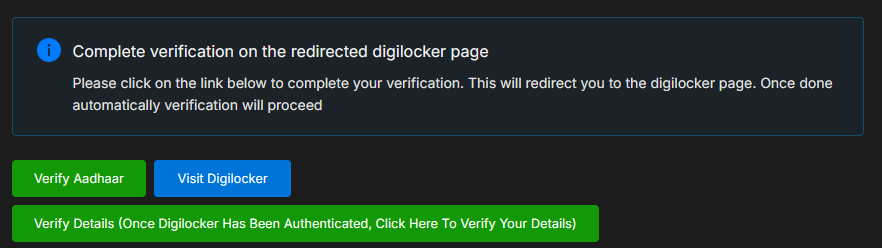
1. Enter your aadhaar number and click on **Verify Aadhaar**
2. This will generate a Digilocker authentication url from where you need to authenticate and allow Aadhaar details
3. Click on **Start Verification** and continue with further steps.
4. Continue with on screen directions to authenticate into Digilocker
5. Select **Aadhaar Card** to share details for verification
6. Once shared, click on **Verify Details** on the **Validate Aadhaar** modal
This should complete the verification step.
{% hint style="info" %}
Note: Incase your Digilocker session expires, you can enter your Aadhaar Number again and click on Verify Aadhaar which will refresh Digilocker session
{% endhint %}
{% hint style="warning" %}
Incase there is a failure in verification, please contact us at
{% endhint %}